Showing posts with label apps. Show all posts

Friday, 23 August 2013

IPhone would let you check the status of another iPhone user

Apple has envisioned a way to see whether a fellow iPhone user is free to talk before you even complete the call.

Published Thursday by the U.S. Patent and Trademark Office, a patent appropriately called "Methods to determine availability of user based on mobile phone status," describes just that process.

How many times do you call someone only to get dumped into voice mail? Maybe the person isn't available or is in a dead zone or has just turned on Airplane mode. Apple's proposed invention seeks to eliminate that uncertainty by alerting you to the person's status right off the bat.

To accomplish this feat, a person's iPhone would talk to Apple on the backend to report its status and call preferences. Such settings as location, signal strength, battery life, and mode (Normal, Airplane, or Vibration) would be sent to Apple's servers. A fellow iPhone user who attempts to call that person would see the status of the callee's phone on the screen and can then decide whether to complete the call.

In essence, your phone would borrow a key feature from instant messaging in which you can see if someone is online, offline, free, or busy.

As Apple describes it in typical patent language:

A command is received at an operating system of a first mobile phone for displaying contact information of a remote user having a mobile phone number of a second mobile phone. In response to the command, a request is transmitted to a remote server from the first mobile phone over a cellular network requesting an operating status of the second mobile phone. The operating status of the second mobile phone is received from the remote server over the cellular network. The operating status of the second mobile phone is displayed on a display of the first mobile phone as a part of contact information of the remote user associated with the second mobile phone, where the operating status includes current locality of the second mobile phone.
Such an invention does bring up privacy issues. What if you don't want Apple and other people to know your status? Assuming this feature ever even sees the light of day, Apple would presumably offer you a way to simply turn it off.

Don't buy a new PC or Mac before you read this

Editors' note: article was originally published June 27, 2013, and was updated August 22, 2013, to reflect that many more systems are now available with Intel's latest processors, with still more to come later this year.

Before swiping your credit card on a new ultrabook, all-in-one, or convertible, you're going to want to dive a little deeper into the spec sheets. That's because the latest Intel CPU upgrade, introduced in June and code named Haswell (but officially known as "fourth-generation Core i series") offers significant battery life improvements in the laptops we've tested so far. So, unlike the more ho-hum Intel updates we've seen in years past, there's a real-world payoff in seeking out a Haswell-equipped laptop.

But, many popular laptops, such as the Lenovo Yoga 13 and Apple MacBook Pro with Retina Display, still use third-generation Intel CPUs, with no official upgrade plans yet announced. If better battery life isn't a big concern, for example if you're going for a desktop PC, or if you have a "desktop replacement" laptop that you don't tend to disconnect from the power cord, this could work in your favor, and you could score a nice discount as more pre-Haswell PCs make their way to the discount bin.

How do you tell which is which? That's the tricky part.

The current laptop landscape

As we move into the Haswell era, the market is in flux. Many "new" laptops and hybrids, such as the Lenovo IdeaPad Yoga 11S or the Toshiba Kirabook, all still ship with processors from Intel's third-generation Core i series, the same parts that have been found in most PCs since spring 2012. On the bright side, some popular systems, including the Acer Aspire S7, have added Haswell parts.

Normally this wouldn't be a big deal, because any current laptop will have more than enough processing power for everyday tasks, such as Web surfing, HD video playback, social media networking, and working on basic office documents. For that reason, in years past, having the latest and greatest processors wasn't especially high on my priorities list. Frankly, the average consumer wouldn't feel much of a difference in surfing the Web on a laptop with a budget-minded Intel Core i3 versus one with a high-end Core i7.

But with a growing number of Haswell PCs (and Macs) tested, the battery life results from them so far has been very impressive. The Haswell-equipped PCs also offer Intel's better integrated graphics, either the HD 5000, HD 4600, or HD 4400, rather than the now-outdated Intel HD 4000 graphics found in third-gen Core i-series systems.

Case in point: the 2012 version of Apple's 13-inch MacBook Air ran for 7 hours and 27 minutes in our video playback battery drain test. The 2013 version of the 13-inch Air, with a Haswell CPU, blows that out of the water, with an astonishing 14 hours and 25 minutes on the same test. Sony's Haswell-powered Vaio Pro 13 ran for nearly 9 hours, and even the gaming-oriented Razer Blade, ran for more than 7 hours.

How to choose

The natural question this raises is: should you hold off on buying a particular PC if it still has a third-generation Intel Core i-series processor and wait for the Haswell version? Some popular systems, including the Lenovo Yoga line, the Microsoft Surface Pro, and Apple's MacBook Pro have not publicly announced street date for updated versions with the newest Intel CPUs.

This new Acer Aspire S7 looks the same as the previous model, but its new Intel CPU ran for about 1 hour longer.
I suggest approaching with caution, although I'm not ruling out buying a non-Haswell system altogether. Below are some guidelines that represent my current thinking on the subject; feel free to add your own suggestions and ideas in the comments section below.

Desktops and larger laptops: Buy now
Considering the modest gains in actual application performance (including the HD 5000 graphics), if you're holding off for performance reasons, don't. For a traditional desktop or all-in-one with no battery, the last-gen processor isn't a big deal. The same goes, to a lesser extent, for 15-inch and larger laptops, which by their nature spend most of their time tethered to a desk and power outlet. On the bright side, some gaming laptops, such as the Alienware 14 and Toshiba Qosmio X75, have already moved to Haswell.

Ultrabook-style systems: Seek out a Haswell version
Some of the best ultrathin laptops, namely the Apple MacBook Air, Sony's new Vaio Pro (both of which are available in 11- and 13-inch models), and Acer's Aspire S7 now have the new Intel CPUs. Battery life on these is amazing, and I'd be hard-pressed to buy a premium ultrabook (or faux-trabook) with shorter non-Haswell battery life. It would certainly be painful to spend more than $1,600 on a Toshiba Kirabook or Lenovo Helix and not get the latest processors (and the resulting boost in battery life).

Budget shoppers: Wait if you can, or seek out bargains if you can't
Some of our favorite reasonably priced laptops, such as the Dell Inspiron 14z and Sony's Vaio Fit 14, are not available with fourth-gen Intel Core i-series CPUs yet, nor is there an estimated date for them. The new Core i3 CPUs for budget and midprice systems are the last item on Intel's priority list (the highest-end quad-core Core i7 chips came out first, followed by Core i5 versions), and more-modest battery life expectations are built into buying a sub-$800 laptop. That said, we're already seeing some good deals on pre-Haswell PCs, as retailers and manufacturers begin blowing out inventory to make room for those new Haswell models. Keep an eye on those Sunday newspaper circulars and Internet deals.

Dell's XPS 12 hybrid is now available with a new Haswell-generation CPU.
Tablet/hybrids: Wait for Haswell
Tablets are designed for all-day on-the-go use, but to date, many Windows models -- from the Lenovo Yoga to the Microsoft Surface Pro -- haven't yet hit that battery life sweet spot. Well, it's time to stop compromising. Every Windows 8 device that's either a slate-style tablet or laptop/tablet hybrid could benefit from the extended battery life offered by Haswell. (That also goes for Intel's next-gen Atom CPU, dubbed Bay Trail -- also due soon.) The 14-hour battery life on the new MacBook Air proves it: it's possible to get much better battery life on tablets than we're getting now, and we should demand it. In other words, if you like the look and feel of a current Windows tablet, hold out for the Haswell version. Fortunately, some hybrids, such as the Dell XPS 12, are now shipping with Haswell CPUs.

Bonus advice: Don't worry about Windows 8.1 or Mac OS X 10.9 Mavericks
Savvy tech shoppers know that Microsoft and Apple are both updating their operating systems before the end of the year, to Windows 8.1 (due October 17) and Mac OS X 10.9 Mavericks. The good news is that the Microsoft upgrade will be free (for existing Windows 8 users), and the Mac upgrade is likely to be very cheap (Apple hasn't announced dates or pricing, but the last few Mac versions have been only $20). Any computer running the current OSes should be easily upgradable to the forthcoming versions; there's no reason to wait for them to be released before buying.

What Are the Weirdest Driving Laws in Your State?

Driving laws aren't always easy to keep up with. We all know to stop at red lights, but how do you handle turning when a bike lane is present? Transportation laws can vary by state and you may know better than we do.

In general, driving laws are fairly standard for most situations. Drive on the right side of the road, don't exceed the speed limit, red means stop, green means go. However, there are some laws that are either only present in a certain area, or have atypical applications. For example:

In California, touching your maps app while driving is legally as bad as texting. You can, however, set up your route before you leave and place your phone in a holster within a 5"x5" area in the lower-left or 7"x7" area in the lower right of your windshield. Anywhere else is also against the law.
In Alaska, Florida, Hawaii, Kansas, Louisiana, and Massachusetts, it is illegal for any vehicle in motion to use its hazard lights. Other states allow hazard lights in emergency situations or to indicate a traffic hazard (like heavy rain), while others—such as Georgia, Kentucky, Pennsylvania, and others—allow hazard light usage at any time.
In California (again), bike lanes are treated as full lanes for the purposes of turning right. That is, if you are in the right-most car lane, but there's a bike lane next to you, it is illegal to turn right from the car lane by crossing over the bike lane. You must first merge into the bike lane before the intersection, then make your turn.
For most driving situations, we all know the basics. However, when you're traveling, chances are you'll pass through a state that has some weird laws you had no idea about. So, what are the things that a visitor driving in your state should know about?

Google's Newest Play Store Confirms Manual Updates When Updating All

Google's Play Store offers a lot of options for keeping your apps updated. However, if you've updated to the newest version, you may have noticed a new alert like the one above under certain circumstances.P

Here's how the new reminders work: if you allow the Play Store to automatically update apps in the background, but have disabled automatic updates for specific apps, you'll be prompted to confirm each one of those whenever you press the "Update All" button on your My Apps page. If you have the global setting turned off for automatic updates altogether, however, you won't ever see this prompt. It's a little confusing at first, but basically if you told Google that you always want to manually update a certain app, it will always give you a prompt to confirm for that app.

Android Open Source Project now has latest 4.3.1 fixes for most Nexus hardware

The latest Android 4.3 updates brought a slate of unfortunate software bugs to the party and to Google's own Nexus devices, ironically enough. Thankfully, the Mountain View crew is hard at work patching things up, as evidenced by the Nexus 7 update earlier today that resolved its multi-touch and GPS issues. Now those fixes are up on AOSP as well, not only with the aforementioned JSS15Q build for the 7-inch tablet, but also the JWR66Y for the rest of the recent Nexus clan. The reasoning behind having two fixes instead of one was the addition of an extra bit of code unique to the Nexus 7; they'll be incorporated into one patch as soon as the devs work out the kinks. Aside from patching those aforementioned bugs, the update resolved a clipboard crash issue, tweaked App Opps permissions and fixed a few extra bits of errata. If you're not afraid of a bit of tinkering, head on over to the source to update your Nexus hardware now, or just wait for Google to release Android 4.3.1.

Chrome 30 beta whats new?.. what to except..

The Chrome 30 beta has one of the longer lists of new features we've seen from the browser in quite some time. One of the most immediately visible will be a new option to search by image when you right-click or long-press on one. It'll use your default search provider to perform the task, but chances are you'll be using Google's own top-notch photo-mining service. The Android edition is also revamping its various gestures to make them easier to perform and lessen the chance of accidentally triggering them. Now all the gestures are performed in the top tool bar: swipe left or right to switch tabs, down from the middle to initiate the tab selector or down from the upper right-hand corner to open the menu.

As if that wasn't enough, the back-end tech is getting a slew of new features on both the desktop and mobile sides. The Android version of the Chrome beta now supports WebGL, the MediaSource API and DeviceMotion, for making use of the accelerometer in the browser. MediaSource is particularly useful for generating dynamic streams of content that can adjust bit-rates on the fly, based on the quality of the connection. On the desktop, a load of new APIs have been added to the Chrome App framework, including support for in-app payments and downloads. WebRTC and speech recognition have also received improvements across all platforms. You can find out more details at the source and download the new Chrome beta and try them yourself........

Ubisoft isn't afraid of mobile gaming, sees a bright future in Wii U and Oculus Rift

Ubisoft's Alain Corre isn't worried about the rise in mobile gaming. On the contrary, Corre, who heads up the company's overseas operations, seems to welcome the uptick in iOS and Android gamers and not resignedly, either. "What we like in mobile gaming is that it's bringing a lot of new people to games," he told us. "Which for us is very good because it's a teaching thing and... at one point, some of them will feel a bit limited with the scope of mobile games and they'll want to experience something different in gaming." Whether it's the limitations of the casual genre or outright boredom, Corre's confident a chunk of these new gaming converts will seek out home console or PC experiences. Something more along the lines of a Watch Dogs or Assassin's Creed, perhaps. And with the advent of the next-gen, the timing for this gaming initiation couldn't be better for Ubisoft.

And then there was Wii U. Ubisoft famously announced Rayman Legends as a console exclusive for Nintendo's platform at launch and then publicly reversed course when systems sales flagged. The title's now set for an imminent multiplatform release, but don't expect Corre to speak ill of Nintendo's two-screened gambit. "We consider the Wii U a great machine [and] the GamePad is second to none... We just need Nintendo to put more energy [in]. A lot of consumers will want this machine if the energy is put in." It's a bullish outlook especially considering ZombieU, a launch exclusive that took full advantage of the GamePad, failed to fly off shelves. Yet, Corre believes the market is still there for the Wii U and that games like Mario Kart 8 and Super Smash Bros could help Nintendo see a change of fortune. At which point, Ubisoft will be ready to allocate development resources back to the console. For now, though, there's Just Dance and Rayman Legends on the horizon, and maybe even some Rayman DLC. "That's something we are thinking of for Rayman Legends. There may be some extra things we can do for this game."

Nintendo's second screen isn't the only one Ubisoft's focused on. Both Microsoft and Sony have solutions in place for their respective next-gen consoles and Corre is adamant that Ubisoft will support those experiences. He explained that this strategy would be an organic, integral part of all game development, saying that, "For us, we consider that, moving forward, the big experiences will need to have a second screen experience because it's part of the gameplay. So, all this extra gameplay will become... natural for the next big games." But don't take that as a catch-all pledge. Corre was cagey when we asked specifically about blanket PS Vita Remote Play support -- despite Sony's Shuhei Yoshida's insistence that Remote Play support exists on a system level for the vast majority of PS4 games -- a function only recently demoed for Assassin's Creed 4: Black Flag. Corre admitted that it would be determined on a case-by-case basis.

Chrome OS stable turns 29 with 'immersive' mode, improved launcher search

The stable channel of Chrome OS has hit version 29, and with that tick comes a few new features we saw in beta just a month ago. Most notable is an "immersive" mode that hides the toolbar and shelf for a truly full-screen browsing experience. And, just like on the standalone browser, you need only hover at the top of the screen to bring those UI elements out of hiding. Pinning apps to the launcher has also been simplified with drag-and-drop -- something so intuitive and obvious that we're surprised it's taken this long to implement. The app launcher's search feature has also received a pretty impressive update, with the ability to pull in results from the web store as well as locally "installed" apps and it will dynamically learn from your searches to deliver the most relevant results. A few more minor tweaks have also been baked in, such as monitor scaling, wallpaper syncing and "two-finger history navigation" (which we're pretty sure is fancy talk for a back and forward browser gestures). The update should be rolling out now to all Chrome OS devices, with the exception of the Thinkpad X131e.

Wednesday, 21 August 2013

The Confusing Science Of Whether Video Games Are Ruining Your Life

A brief round-up of how video games are destroying your life and also making you a superhuman

A good rule of thumb in life is that if you enjoy something, it must be terrible for you. Kidding! Kind of. So it goes with video games. Except not, sometimes. But maybe also yes? Or both at the same time?

Historically speaking, video games are a relatively new cultural phenomenon. So, as you might expect, some of the science on their psychological and physiological effects is murky at best. Popular media organizations (hi!) looking for a common link between kids to explain uncommon behavior might also sensationalize video-game research.

It's probably safe to say that video games have some good effects on our health, along with some not-so-good effects, but it's not always easy to suss out which are which. Here are some examples of how confusing things get:

Games can make you smarter.

Games can make you smarter.

Games can make you dumber.

Games can make you worldly.

Games can make you a better driver.

Games can improve your reflexes.

Games don't improve reflexes.

Certain games are relaxing.

Lots of games are relaxing.

Games can cause aggression.

Games do not cause aggression.

Games are kind of related to aggression.

Games make you snack a lot.

Games can make you fat.

Games can make you skinny.

Saturday, 17 August 2013

How touchscreens work

How Does a Touch Screen Work?
A touch screen has three main components: a touch sensor, a controller, and a software driver. The touch screen itself is an input device, so it needs to be combined with a monitor and a PC to make a complete touch input system.

Touch Sensor

There are a number of touch screen technologies on the market today. Each uses a different method to sense touch input. Often these are a plastic or glass panel placed under the bezel of the LCD screen.

Touch Controller

The touch controller is a small PC card that connects between the touch sensor and the PC. It is usually installed inside the touch monitor. The touch monitor will have an extra cable connection on the back – usually USB or serial (RS-232) that connects directly to this board. The touch controller takes information from the touch sensor and translates it into information that the PC can understand.

Touch Screen Software Driver

Our touch screen monitors and kiosks are supplied with touch screen software drivers that allow the touch screen to emulate the left button click of a mouse.  Installing the software is usually a quick process consisting of running the installation file. Most users find that they simply accept the defaults, and installation normally just takes a few moments.

Once the touch screen driver software is installed, touching the screen is the same as clicking your mouse at the same point on the screen. This allows the touch screen to work with a vast amount of pre-existing mouse driven software. This also allows for simple development of new applications, because no additional code or knowledge is required to develop software for use with the touch screen. New touch screen applications can be developed in the same way as mouse driven software.  The touch screen can emulate left-clicks, double-clicking, and dragging. When the screen is touched, it is the same as if you used your mouse to move the pointer to that spot, and then clicked your left mouse button.
Resistive touchscreens - which are used on some Samsung, HTC and LG phones, and are typical of ATMs, supermarket checkout stations and the electronic signature doodad the UPS guy carries - have a glass panel that’s covered with conductive and resistive metallic layers. These two layers are held apart by spacers, and an electrical current runs through them when the screen is operational. When a user touches the screen, the two layers make contact in that spot. The change in the electrical field is noted and the device coordinates the point of contact so a device driver can translate user touches and movements into something that the OS can understand.

Capacitive touchscreens - used on the iPhone, Droid Eris and Blackberry Storm, among other smartphones - have a glass screen covered by a transparent conductor layer that stores an electrical charge. When a user touches a finger (which is also conductive) to the screen, the electrical field distorts and the device uses that to figure out where the screen was touched and relays the info to the driver.

The big drawback of capacitative screens is that they don’t work well, or at all, when the user's fingers are covered by electrically insulating material, like gloves. If the choice between cold hands and using your phone is a hard one, you can get around the issue by buying gloves that have conductive threads woven into the fingertips, or by making your own.

Friday, 16 August 2013

ROOTING YOUR ANDROID DEVICE


What is rooting?

If you’re an Administrator on a Windows machine, you have access to the entire operating system and you can do whatever you like. That’s essentially what happens if you root your Android device. With root access, you can get around any restrictions that your manufacturer or carrier may have applied. You can run more apps; you can customize your device to a greater degree; and you can potentially speed it up in a variety of ways.
The process involves backing up your current software and then flashing (installing) a new custom ROM (modified version of Android).

Why would you root?

One of the most obvious incentives to root your Android device is to rid yourself of the bloatware that’s impossible to uninstall. You’ll be able to set up wireless tethering, even if it has been disabled by default. You can also access your entire file system, install special apps that require a root, and flash custom ROMs, which can add extra features and streamline your phone or tablet’s performance. A lot of people are tempted by the ability to completely customize the look of their phones. You can also manually accept or deny app permissions.
You won’t find a lot of amazing must-have apps when you root, but there are enough to make it worthwhile. For example, some apps allow you to automatically backup all of your apps and all of their data, completely block advertisements, create secure tunnels to the Internet, overclock your processor, or make your device a wireless hotspot.

Why wouldn’t you root?

There are essentially three potential cons to rooting your Android.

  • Voiding your warranty: Some manufacturers or carriers will use rooting as an excuse to void your warranty. It’s worth keeping in mind that you can always unroot. If you need to send the device back for repair, simply flash the original backup ROM you made and no one will ever know that it was rooted.

  • Bricking your phone: Whenever you tamper too much, you run at least a small risk of bricking your device. This is the big fear everyone has. The obvious way to avoid it happening is to follow instructions carefully. Make sure that the guide you are following works for your device and that any custom ROM you flash is designed specifically for it. If you do your research and pay attention to feedback from others, bricking should never occur.

  • Security risks: Rooting may introduce some security risks. Depending on what services or apps you use on your device, rooting could create a security vulnerability. For example, Google refuses to support the Google Wallet service for rooted devices.

How to root your Android

Before you actually try to root your device, make sure that you do some reading. The best place to find discussions about rooting, guides, and custom ROMs is definitely the XDA Developers Forum. Look for a thread on your specific device and you’re sure to find a method that has worked for other people. It’s worth spending some time researching the right method for your device.

Preparation for root

You’ll want to ensure that your device is fully charged before you begin. You’ll also need to turn USB debugging on. On the Galaxy S3 you’ll find it in Menu > Settings > Developer options and then check the box next to USB debugging. You will likely be plugging your device into your computer in order to root it.
Most Android rooting methods require you to install some software on your computer. It’s likely you’ll need to install the Android SDK. You may find other software is required. Make sure you follow the instructions and install all of it before proceeding.

One-click rooting

One of the easiest methods of rooting, which also supports a long list of devices, is SuperOneClick. You’ll find clear instructions, including a video, on how to use it at this XDA Developers SuperOneClick thread.
You will need to install some software to prepare, but the actual rooting process is one click. It will only take a few minutes to complete and then you’ll need to restart your Android device.
There is software out there that claims to provide one click rooting with no extra installs, but you should not have to pay to root your device and it’s very important to be wary about the method you choose. If in doubt, do more research. The XDA Developers forum is the most trustworthy source for rooting guides.

Your specific device

The reason rooting isn’t more straightforward is that all Android devices are not created equal. There are significant differences between Android smartphones, between manufacturers, and even between carrier specific versions of the same phone model. Make sure that any rooting guide or custom ROM you intend to use does support your specific device or you are asking for trouble.
Once you have found the right guide for your phone or tablet, it’s simply a case of working through the listed steps methodically. It can be a complicated procedure and it can take a while. Here’s an example guide for rooting the Samsung Galaxy S3. It can appear intimidating at first glance, but provided you follow it step-by-step, it should be a pain-free process. You can post questions in the XDA Developers forum if you run into trouble.

To root or not to root

Gaining full root access to your Android device can be thrilling, especially if you want to tinker with settings and customize your device. How much it changes your experience depends largely on the device you have. If you have a shuttered device, like a Kindle Fire tablet, then it’s a great way to get the full Android experience.
The potential benefits for all Android users include improved battery life, root-only apps, custom ROMs, overclocking, an end to bloatware, improved performance, and the ability to upgrade your phone when you want. If you aren’t excited at the prospect of any of these things, rooting probably isn’t for you.


BEST SITE TO GET HELP


HOW TO SLIDE LOAD ANDROID APPS


What is sideloading?

“Sideloading” is just another word for installing an Android application onto your phone, from somewhere other than the Google Play Store. While this is generally a bad idea for beginners (you never know what kind of viruses you can catch on the internet), there are times when you need to test an app from a trusted developer, or even install a leaked version of something official (like a new Google Play Store, Google Maps, etc.).
Take heed. This should never be used as a way to circumvent paying for games or applications on Google Play. With Android being the most targeted mobile OS in regard to viruses and malware, stick to the Play Store if possible. This is actually one of the main reasons why Android doesn’t allow sideloading by default (but this can be turned off).

Not all Android apps come from the Google Play Store. In fact, there are a number of places on the Web where you can find safe and sometimes free apps for your Android phone. In order to install these apps, however, you're going to need to sideload them onto your device. Sideloading refers to the process that allows you to run apps on your Android phone that don't come from an official source like the Google Play Store: Most Android phones have this option disabled by default, but turning it on takes less time than ordering a hamburger at McDonald's.

To sideload apps, you'll need to enable this option.

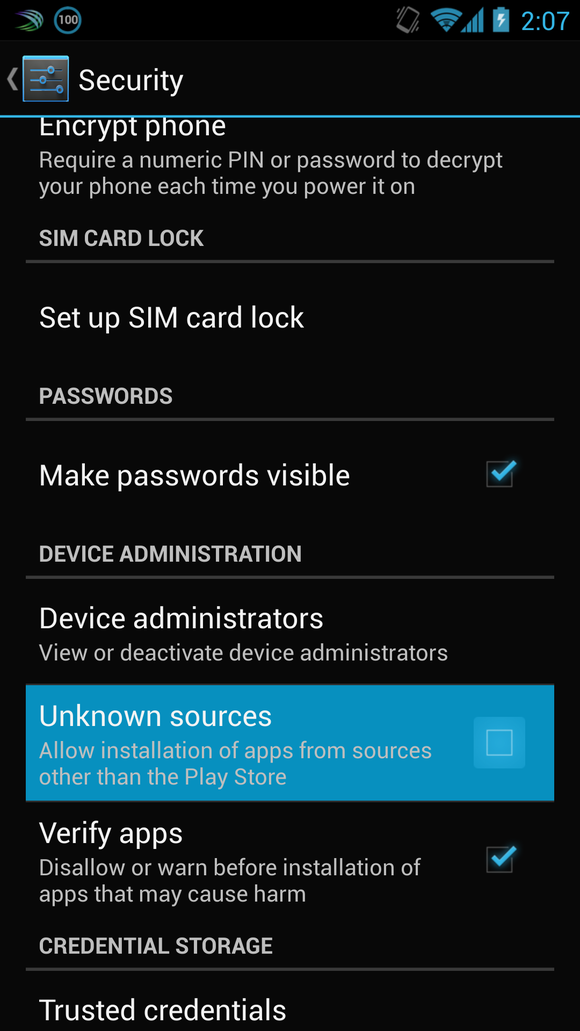
To start, open your phone's settings app and make your way to the security section. Once there, locate the option titled "Unknown Sources" and tap it to turn it on. A warning will pop up, telling you that bad stuff may happen if you allow your phone to run apps from outside the Google Play store. Confirm the prompt that pops up and presto! You can now sideload apps onto your phone by downloading app APKs—the files in which the apps live. You can install those apps by either opening them in Downloads or using an app like Easy Installer.
What can you do with your newfound super power? You'll have access to a wider range of app stores: Amazon, for example, runs one of the biggest third-party Android app stores around, and its selection is comparable to what you'd find on Google's Play Store. A nice bonus of using the Amazon App Store is that it offers a free app per day, allowing you to slowly build up your collection of apps.
If you're an avid participant in the Humble Indie Bundle, it would probably be worth your time to download and install the Humble Bundle Android app. The app keeps track of which games you've purchased and makes it easier to update them whenever a new version is released. It's not available in the Play Store so you have to sideload it (along with any Humble Bundle Android games you download).
As always, make sure you do your research before installing an app. While there are plenty of legitimate third-party app stores out there, you always run the risk of downloading something nasty onto your phone. Keep your wits about you and have fun discovering nifty new apps.

NEXUS 7 2013

The good: The Nexus 7’s razor-sharp full-HD screen, silky smooth performance, long battery life, meager weight, and affordable price make it the best tablet value on the market.
The bad: The back is missing the soft grippy texture of the original, screen colors lack accuracy, and there's no microSD support. Android 4.3 has few useful interface improvements.
The bottom line: Thanks to its stellar performance and affordable price, the Nexus 7 is the Android tablet to get.
Pound for pound, the Nexus 7 is the best small tablet you can buy. It houses a ridiculously sharp, bright screen, its gaming performance is second only to the fourth-generation iPad, and as a Google-branded tablet it will always see the latest version of Android before any other tablet brand.
Also, at $230 (for 16GB), it's still an affordable tablet with one of the highest values in the market, despite a $30 price hike over the previous generation. The $270 32GB Wi-Fi model and $350 4G LTE version are even better values, especially compared with similar configurations of the iPad Mini.
Yes, it's not as cheap as some of the top small tablets from 2012, its screen isn't as big as the iPad Mini's, and Android 4.3 lacks a few useful UI features Samsung plugged into its Galaxy Tab 3. However, those are only nitpicks considering the Nexus 7's sharp-as-nails screen and blazingly fast performance. Despite its imperfections, it's the first small tablet I'd recommend and is the current best tablet value around.
Design
At 0.64 pound, the Nexus 7 is the lightest tablet yet, and with a 4.5-inch width when held in portrait orientation, it's probably the easiest to fit in one hand. It's an extremely simple design, black in color, and it honestly lacks much in the way of panache. It's a harsher tablet compared with the original, and I miss the 2012 Nexus 7's soft, much more inviting feel.
The smooth matte finish of the tablet's back isn't as comfortable or as grippy as the soft leathery back of the 2012 Nexus 7. Also, the new tablet's corners aren't as pleasantly rounded and the Micro-USB port on the bottom edge sticks out just enough to be distracting when held in landscape mode.
Software features
The Nexus 7 ships with the very latest version of Android (4.3), and to be quite honest, the OS isn't much different from the previous incarnation (4.2.2). At least not obviously so. For a detailed look at the updated OS' features.The notable new features are Multi-User Restricted Profiles, OpenGL ES 3.0 support, and Bluetooth Smart. User profiles were introduced with Android 4.2, and the latest version allows you to add a kid-friendly profile that the primary profile controls. The restricted profile will only have access to apps deemed acceptable and will have no access to the Play store. It's an ideal solution for families wanting to share a single tablet; however, Google leaves the decision of implementing it up to the developer.
OpenGL ES 3.0 improves polygonal graphics performance and allows the tablet to better handles effects like lens flares, shadows, and other shader effects. With Bluetooth Smart, the Nexus 7 can connect to a newer generation of Bluetooth devices as well as transmit metadata like song titles.
Hardware features
The 7-inch Nexus 7 houses a 1.5GHz Qualcomm Snapdragon S4 Pro system on chip with a quad-core Krait CPU and a single-core Adreno 320 GPU. It has 2GB of RAM and includes support for 802.11 a/b/g/n (2.4GHz and 5GHz) Wi-Fi, Bluetooth 4.0 (including Bluetooth Smart support), and a GPS. Additionally, a gyroscope, accelerometer, and a digital compass are included as well.

NEXUS 7 2012

Stunning 7” display

With a stunning 7-inch display, all day battery life, even more storage, and mobile data to keep you connected, Nexus 7 is the perfect travel or commute companion. 

Speed and performance

Nexus 7 is built by ASUS and comes with a NVIDIA® Tegra® 3 quad-core processor so everything is faster – pages load quickly, gameplay is smooth and responsive, and running multiple apps is a breeze. Patented 4-PLUS-1™ design gives you processing power when you need it, and battery saving efficiency when you don’t. 

Designed with gaming in mind

Nexus 7 was designed with gaming in mind. With heart pounding quad-core performance, a vibrant 1280-by-800 high-resolution display, and sensors like a gyroscope and accelerometer – do a barrel roll, then tilt, touch and tap your way to the top of the leaderboards while exploring over 700,000 apps and games available on Google Play. 

Less charging, more doing

With over 9 hours of HD video playback, 10 hours of web browsing or e-reading, and up to 300 hours of standby time, Nexus 7 can go the distance. Whether you measure battery life in chapters read, levels completed, movies watched or minutes of backseat silence, you can spend less time charging and more time doing.

Made for Google Play

Nexus 7 was made for Google Play, putting all the entertainment you love right in your hand: the world's largest collection of eBooks, millions of songs, thousands of movies and TV shows, and the latest magazines – plus over 700,000 apps and games. 

No wires, no hassle
Forget about cables and syncing. Google Play stores all your digital content in the cloud so it’s instantly available and you can pick up right where you left off.

Millions of eBooks
With over 4 million titles to choose from, Nexus 7 gives you access to the world’s largest collection of eBooks. As thin as a paperback book, Nexus 7 is portable enough to fit in back pockets and purses, and lets you customize your reading experience by adjusting the font, switching to day or night mode, and much more. 

700,000 apps and games
Get all the apps and games you love on Nexus 7 – with over 700,000 titles to choose from, Google Play has something for everyone. From games for the kids to the latest 3D epics, you’ll find the most popular free and paid apps and games on Google Play. 

Explore Google Play
Google Play puts all your favorite entertainment right in your hand. Explore millions of songs, thousands of HD movies and TV shows, and the latest magazines on Nexus 7.

Best of Google

Nexus 7 comes with all your favorite Google Apps – like Gmail, Chrome, Google+ and YouTube – putting the best of Google in the palm of your hand.
Live in the Now
Google Now brings you just the right information at just the right time. It shows you how much traffic to expect before you leave for work, or when the next train will arrive as you’re standing on the platform.
With the latest version, Google Now keeps you even more organized – get reminders about upcoming flights, restaurant reservations, and hotel confirmations – when and where you need them.
Sign in. Stay synced
Nexus 7 is fully connected to Google’s reliable cloud services – so your contacts, Gmail, calendar, photos, music, movies, and books are always backed up in the cloud, no wires needed. Just sign in with your free Google Account and you’ll never lose the things that matter most.

Browse the web Chrome fast.

Nexus 7 comes with the speed and simplicity of Google Chrome, built in. Sign in to sync your bookmarks, view tabs you have open on your computer, send web pages from your computer to your tablet, and more. Browsing the web from your tablet has never been faster – pages load in a snap and hardware-accelerated rendering lets you experience the web, Chrome fast.

Gmail, to go

Gmail is better than ever on Nexus 7. Intuitively swipe back and forth between email threads so you can read and respond quickly and fly through your inbox – and all your email syncs automatically from your Nexus 7 to your phone and computer.

Google+ Hangouts

Nexus 7 lets you video chat with up to nine friends at once with Google+ Hangouts. You’ll look great with the 1.2MP front-facing camera, and starting a Hangout is a snap – on WiFi or on mobile network data.

YouTube in HD

Bring millions of videos from YouTube anywhere you go, ready to watch in the palm of your hand. With Nexus 7, videos on YouTube are available in vibrant high-definition. Watch music videos and celebrity exclusives from upcoming and popular artists right on your Nexus 7.


13 Best Android Apps 2013

1.Pocket(free)

                       Let’s say you find a long article on the web — something you need at least 10 minutes to read — but you’re at work or otherwise too busy to read it all right away. Just install the Pocket extension or bookmarklet in your browser, and you can save the story for your lunch break. Pocket’s Android app formats web pages in a clean, booklike view, and it stores content off-line so you can still catch up on reading in a dead zone


2.Flipboard(free)


                               Flipboard is like a personalized miniature magazine for Internet content. It takes stories from around the web and reformats them into little pages of text and images, so you can flip through by swiping up and down. You can also plug in your Twitter or Facebook profiles, and Flipboard will pull the links that people share into the mix — along with the occasional tweet or timeline post.


3.Mighty text(free)


                                 Want to make iPhone owners jealous? Tell them about how you can send and receive all your text messages right from your laptop or desktop web browser. To make it happen, install the MightyText app on your phone, thenset up the web app on your computer.


4.Pulse news(free)


                                           Pulse News is a great way to scan through the headlines and find the stories you want to read. Just pick the news sources you want — or use the built-in suggestions — and you’ll get a scrolling view of thumbnail images and story snippets. The app also has a widget, so you can glance at your favorite news sources from your phone’s home screen.

5.Stitcher radio(free)


                                      Why settle for one talk-radio source when you can choose from thousands? Stitcher brings together live stations, recorded talk-radio shows and podcasts from around the web into a single app and lets you create custom stations based on your favorites. Plus, it doesn’t get all weird around power lines the way AM radio does.

6.Fandango movies(free)

                                                         Fandango is one of a few apps for movie listings, trailers and ticket purchases, but its simple interface and clean design leave it a cut above the rest


7.Songkick concert(free)


                                                  Songkick helps you find concerts with minimal effort. The first time you open the app, it scans your music library, Google Play Music account and Last.fm account (if you have one), and then lists nearby shows for the bands in your catalog. You can also get alerts for new concerts and add a widget to the home screen to keep an eye on upcoming shows. It’s perfect for people who aspire to see more music but always forget to look things up.
Songkick Concerts (Free)


8.Convertpad(free)


                                               ConvertPad isn’t the prettiest unit-conversion app around, but it’s free, and it’s loaded with pretty much everything, from weight and distance to energy flux and radiation absorbed dose. It does currency conversions as well and keeps itself up to date on exchange rates. You can also customize which categories you want to see, just in case viscosity and capacitance aren’t things you’ll be converting anytime soon.

9.Triply(free)


                                      With a little extra effort up front, TripIt spares you from digging for your travel details later. Just forward your flight, hotel, car rental and restaurant reservations to plans@tripit.com, and the app pulls them into separate itineraries. And if you use Gmail, Tripit gathers those details automatically.

10.Onavo extend(free) 


                         If you regularly run into overages or speed limits with your monthly data use, Onavo Extend can help out. The free app reroutes your mobile Internet traffic through its servers and compresses data when possible so you don’t use as much of it. (Here’s a tip, though: if you don’t want the app to pester you when it’s turned off, go into its settings and turn “Savings Alert” off.)


11.Shazam(free)


                                   You hear a song you like. You don’t know who plays it. You open Shazam and press the big button, and a few seconds later, the app tells you the title, the artist, the album and even the lyrics. It’s basically the embodiment of what mobile apps are all about.

12.GOOGLE KEEP(free)

                                                  Keep is a relatively new addition to Google’s stable of homemade apps, and it’s definitely worth checking out if you need a quick way to get your thoughts down. You can create notes with text, by voice (with automatic transcription), with photos or as a list, and they’ll show up in chronological order. Notes are automatically saved online, so you can access them on your computer’s web browser at drive.google.com/keep.

13.TeamViewer(free)


                                             TeamViewer is a free app for remotely accessing your PC over the Internet. The app can transfer files between devices and provide direct access to your desktop from anywhere, as long as you’ve installed the desktop software on the PC you’re trying to access. Keep it handy in case you forget a file or need to provide some remote tech support for a loved one.

Monday, 15 October 2012

you don't use google it uses you

GOOGLE:
                A name with which we all are familiar in internet world.It provides awesome services like google earth,mail,plus, calender,drive,search.We see or self's saying very proudly let me google that we seem to think that we are using google but really are we or its some thing else may be other way around may be it is possible that it is using us and actually that is the reality google is actually using us gathering information from us or likes or dislikes or interests buyers market trend and what we find more attracting and then selling that information to others.Google is becoming source of knowledge for the business world a source which no body will be able to deny and to think that you can survive without that is going to be considered fools gold.